
FITSit
Look after your FITS files: read and edit their headers, name them sensibly, weed out the bad frames and flip through the rest.
FITSit is a Mac app for astrophotographers and anyone else who works with folders of FITS images. It has four windows, each built for one job, and all of them work directly on the files you already have.
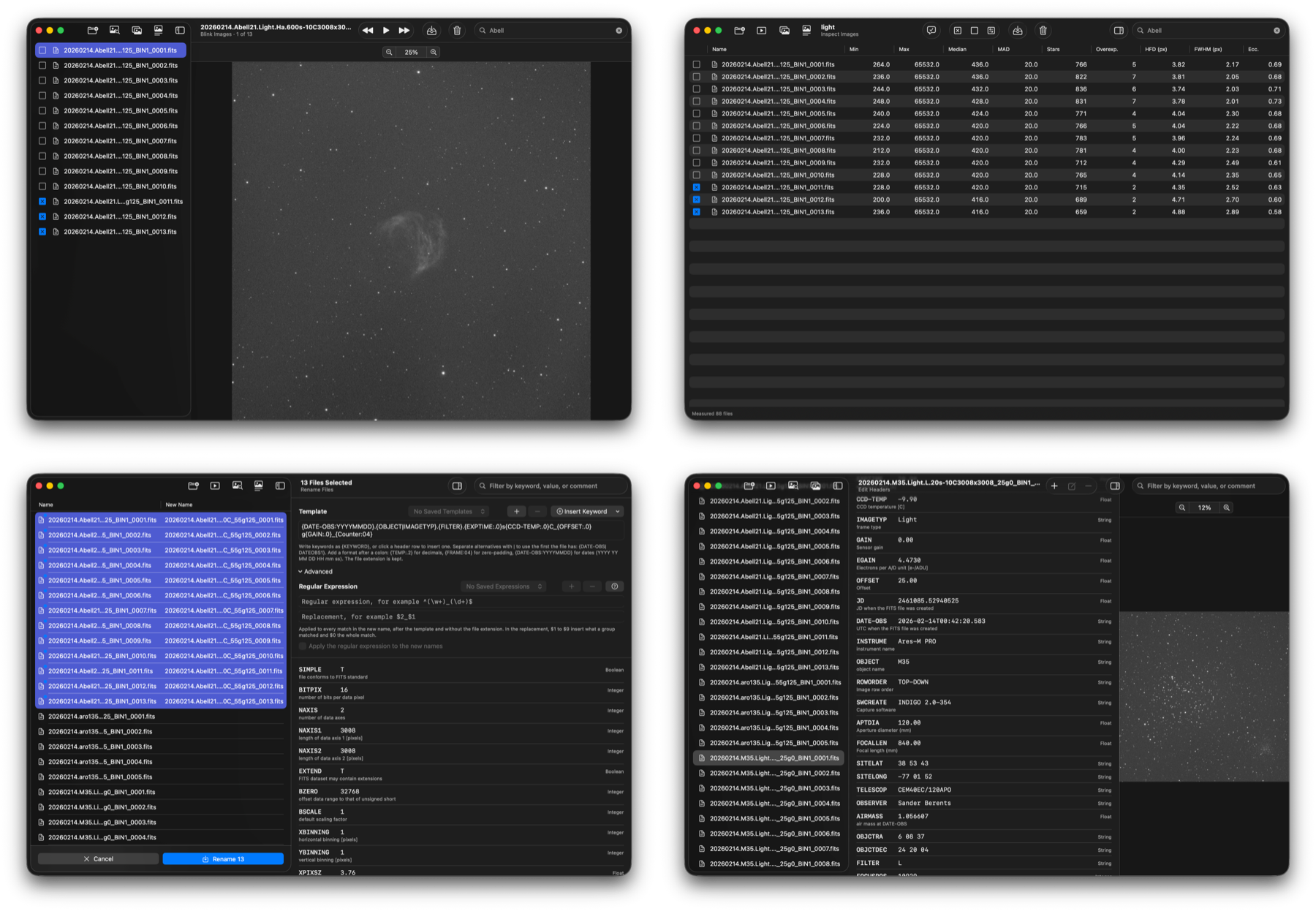
A night of imaging leaves you with hundreds of FITS files
Before the real processing starts, there is a lot of housekeeping to do, and it rarely gets the attention it deserves:
Some frames are bad.
Clouds drifted through, a satellite crossed the field, the focus slipped, the guiding trailed the stars. Stacking them lowers the quality of the final image, but finding them means opening frame after frame.
The names say nothing.
Light_0001.fits doesn’t tell you the target, the filter, the exposure or the night, and the same names repeat from session to session.
The headers are wrong.
A mistyped OBJECT, a FILTER set to the wrong name, a missing keyword: each one is a small fix, but repeated over a whole night’s frames it becomes a chore, and FITS headers are awkward to edit by hand.
The tools are scattered.
Viewers, header editors, renaming utilities and measuring scripts are all separate programs, and few of them are pleasant to use.
FITSit puts these jobs in one native Mac app. Choose a folder, and everything below is a click away. Optionally, FITSit includes the files in the folders inside it as well.
Pixels and headers, together
FITS is the file format astronomical cameras and capture programs use to save images. Besides the pixels, every FITS file carries a header: a list of keywords such as OBJECT, FILTER, EXPTIME and DATE-OBS that record what was photographed and how.
FITSit reads both parts. It shows the images, measures them, and lets you read and change the headers, in whole folders at a time. It works with .fits, .fit and .fts files of any bit depth, and raw color (Bayer) frames from one-shot-color cameras are shown in color.
Your files are changed only when you say so
Nothing you type in Edit Headers is written until you click Save, and nothing in Rename Files happens until you click Rename. Blink Images and Inspect Images only read your files, unless you ask them to move or trash the ones you have ticked.
Flip through a folder’s images like a slide show
Blinking shows one image after another in the same place on the screen, so anything that changes from frame to frame jumps out at you: an asteroid moving against the stars, a satellite trail, a passing cloud, drift between frames.
- Step or play. Move backward and forward one image at a time, or press Play and let FITSit run through the folder by itself. While it plays, speed it up or slow it down anywhere between 1/10 and 20 images a second.
- Always instant. FITSit prepares the images in the background, so stepping through them is instant. Very large folders don’t need to fit in memory: FITSit keeps the images nearest to the one you’re looking at and prepares the others again when you go back to them.
- Zoom in on one spot. Your zoom and position are kept from one image to the next, so you can zoom into a corner of the frame and watch that spot change.
- Cull as you go. Tick the frames you don’t want, then move them to another folder or to the Trash.
- Narrow it down. The search field limits what you blink through to the files whose name matches.
Every image is shown with an automatic screen stretch, so even a dark sky frame reveals its faint detail. The stretch changes only what you see, never the file.
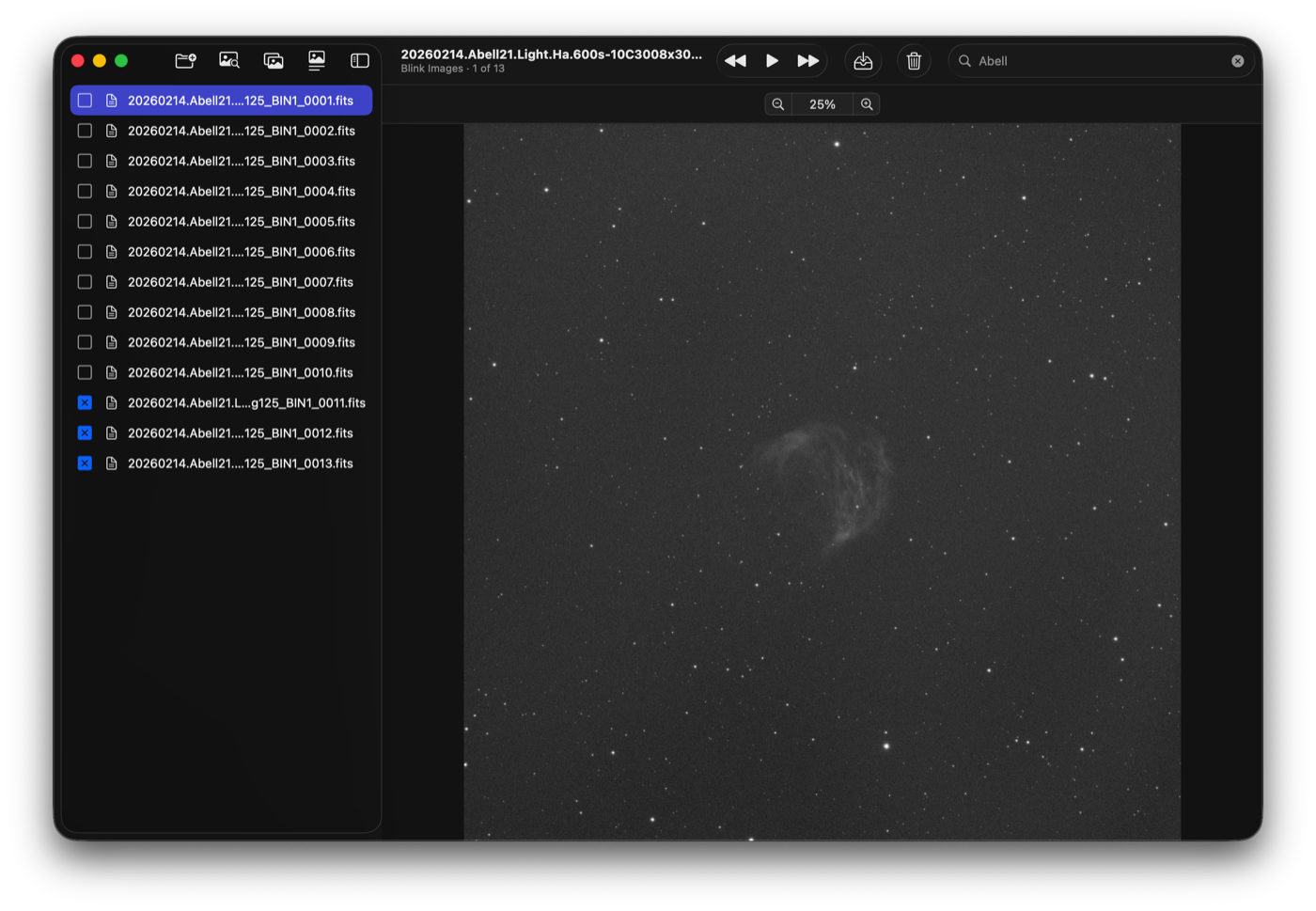
Measure every frame and find the ones that fall short
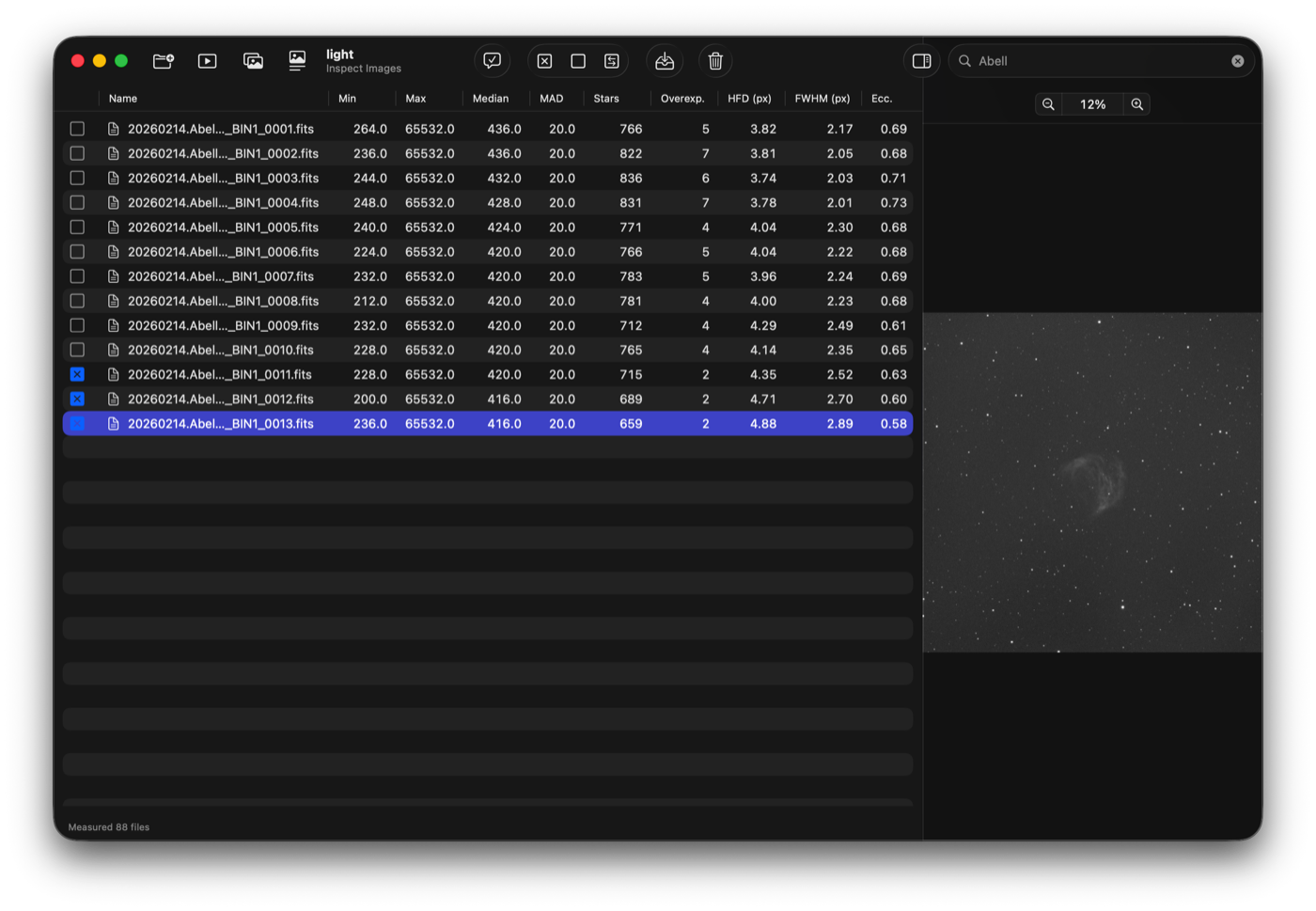
As soon as you choose a folder, Inspect Images measures every image in it and fills a table with the results. You can work with the table while the measuring is still going on.
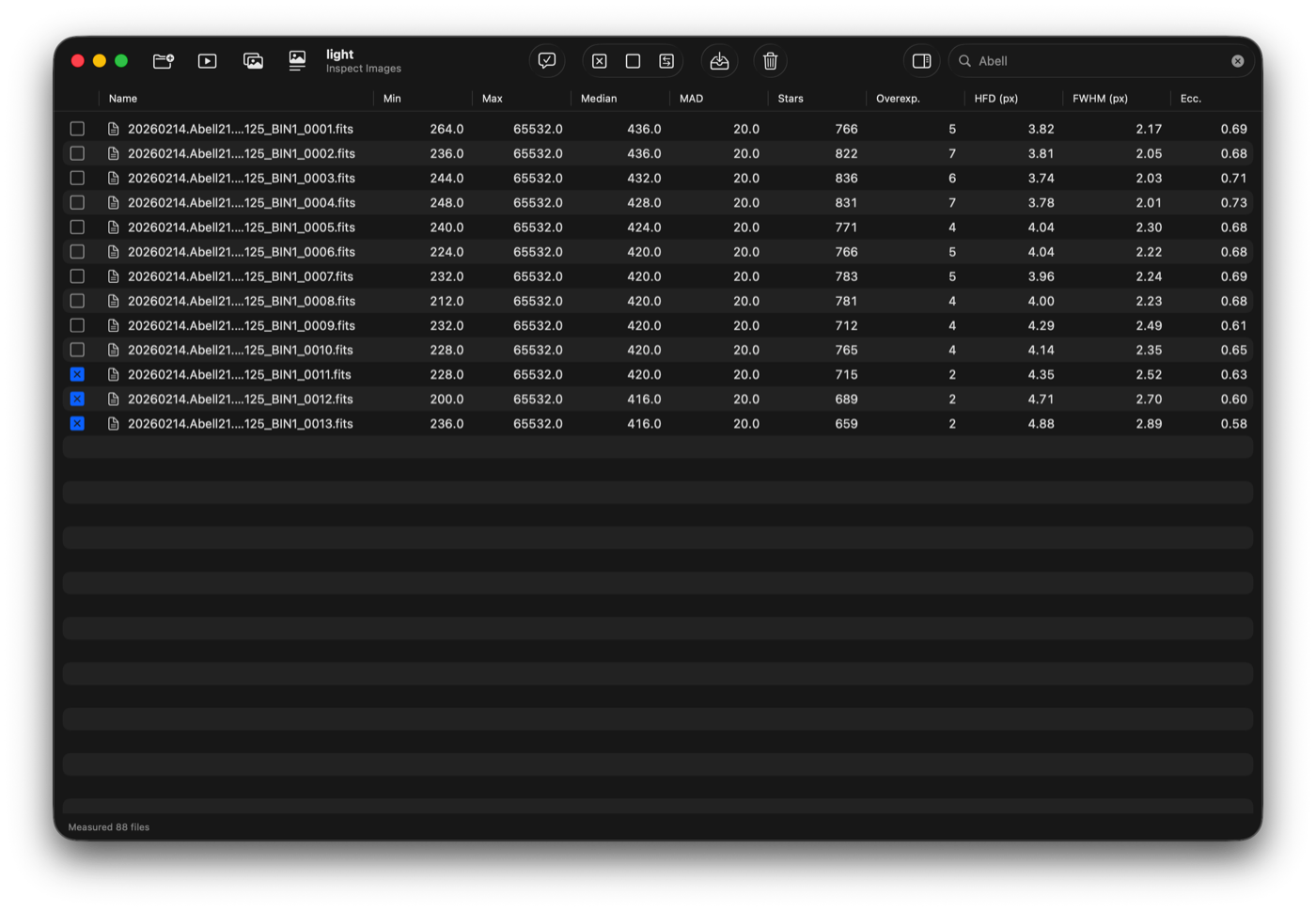
| Column | What it tells you |
|---|---|
| Min, Max | The darkest and the brightest pixel value. |
| Median | The typical pixel value, which for a sky image is the background level. A cloud or the moon raises it. |
| MAD | How much the background varies from pixel to pixel: a measure of noise that isn’t thrown off by stars. |
| Stars | The number of usable stars found. Fewer than usual points to clouds, fog, dew or poor tracking. |
| Overexposed | How many stars have a saturated pixel. |
| HFD | Half-flux diameter of the stars, the usual measure of focus. Smaller is sharper. |
| FWHM | Full width at half maximum, another measure of star width. |
| Eccentricity | How elongated the stars are. 0 is perfectly round; higher points to tracking or guiding errors, or tilted optics. |
Star measures are taken from the pixels themselves, on a sample of up to 1000 stars per image, and the results are reproducible: measure the same image twice and you get the same numbers. Raw color frames are measured on their green pixels, without demosaicing.
Set what’s acceptable, tick the rest
Once every image has been measured, Tick by Range opens a panel with a slider for each measurement. Drag the ends of a slider to set the range you find acceptable, for example a star width of at most 3.2 pixels, and the panel shows how many images pass. Click Apply, and everything inside all the ranges is left alone while everything else is ticked. What’s ticked is what falls short.
From there, move the ticked files to another folder or to the Trash, in one step. Files sent to the Trash can be put back from the Finder.
Click any column heading to sort by it, search by file name, and open the image of the selected row in a side panel to see the frame behind the numbers.
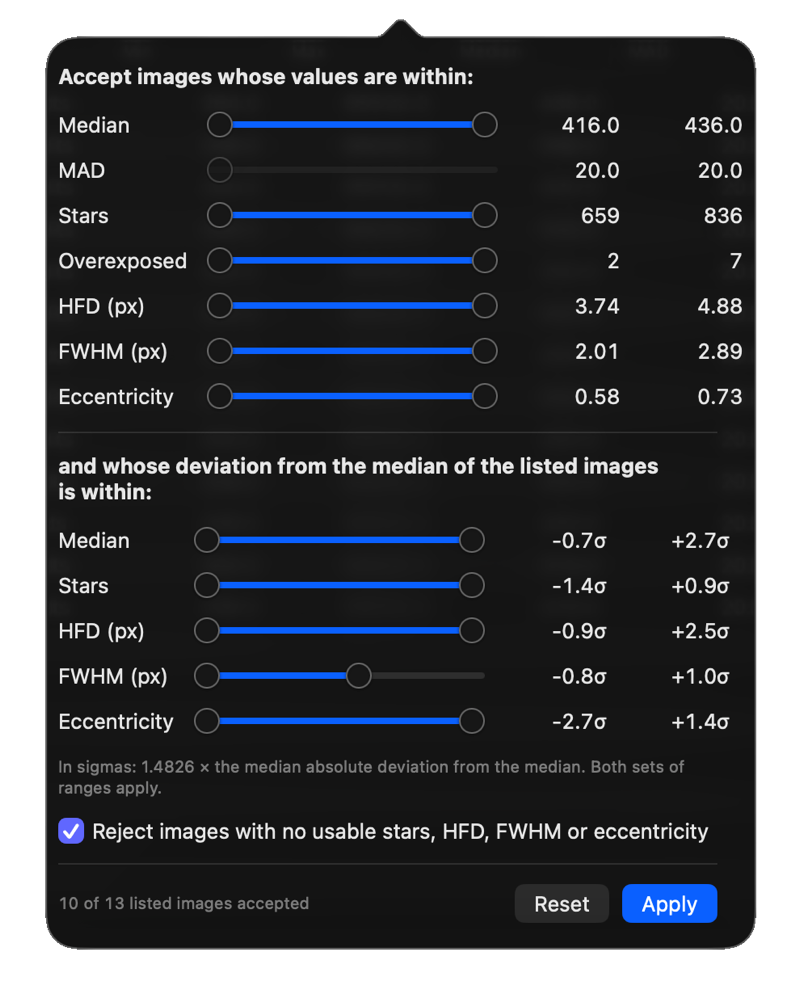
Give a folder of files meaningful names, built from their own headers
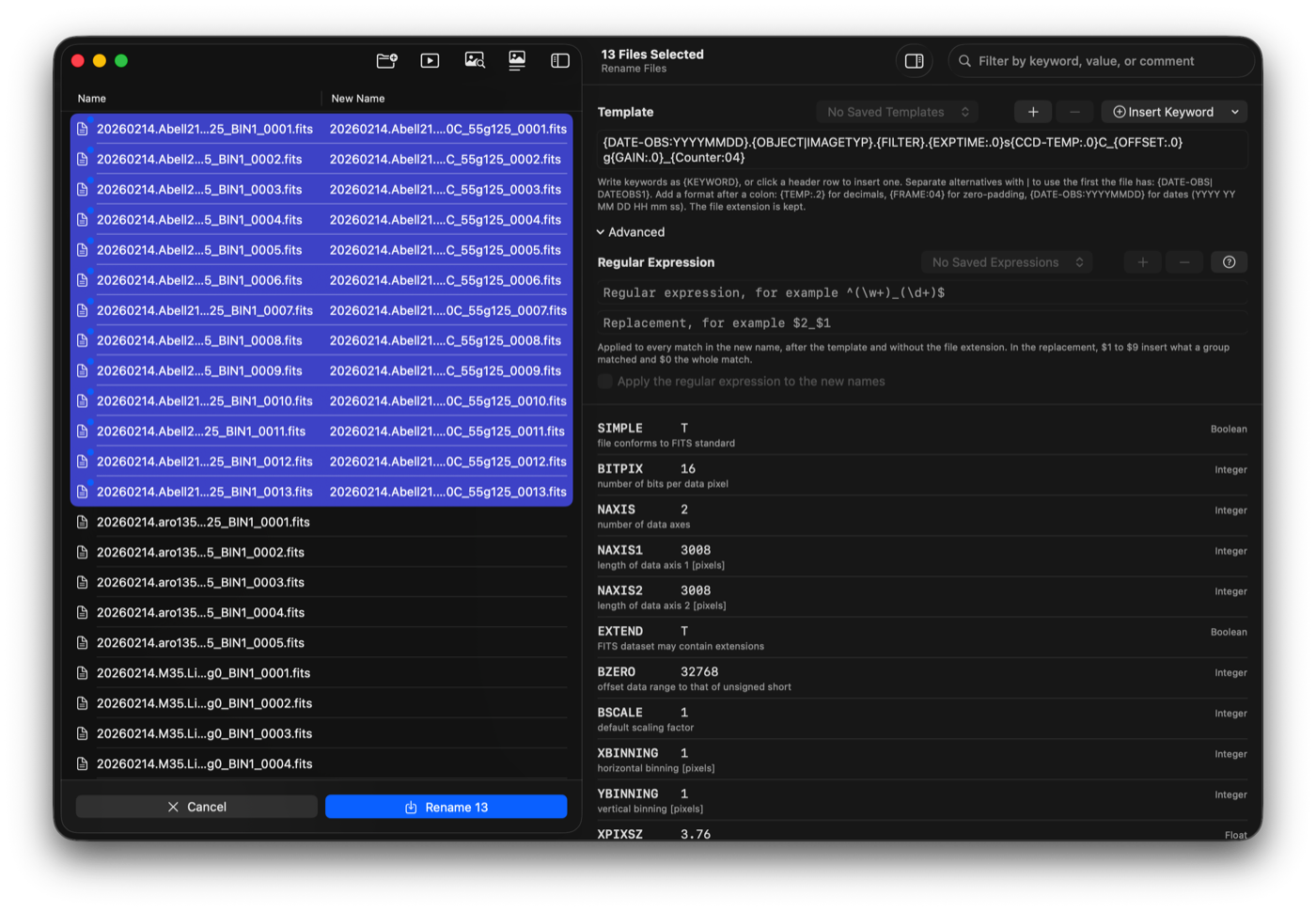
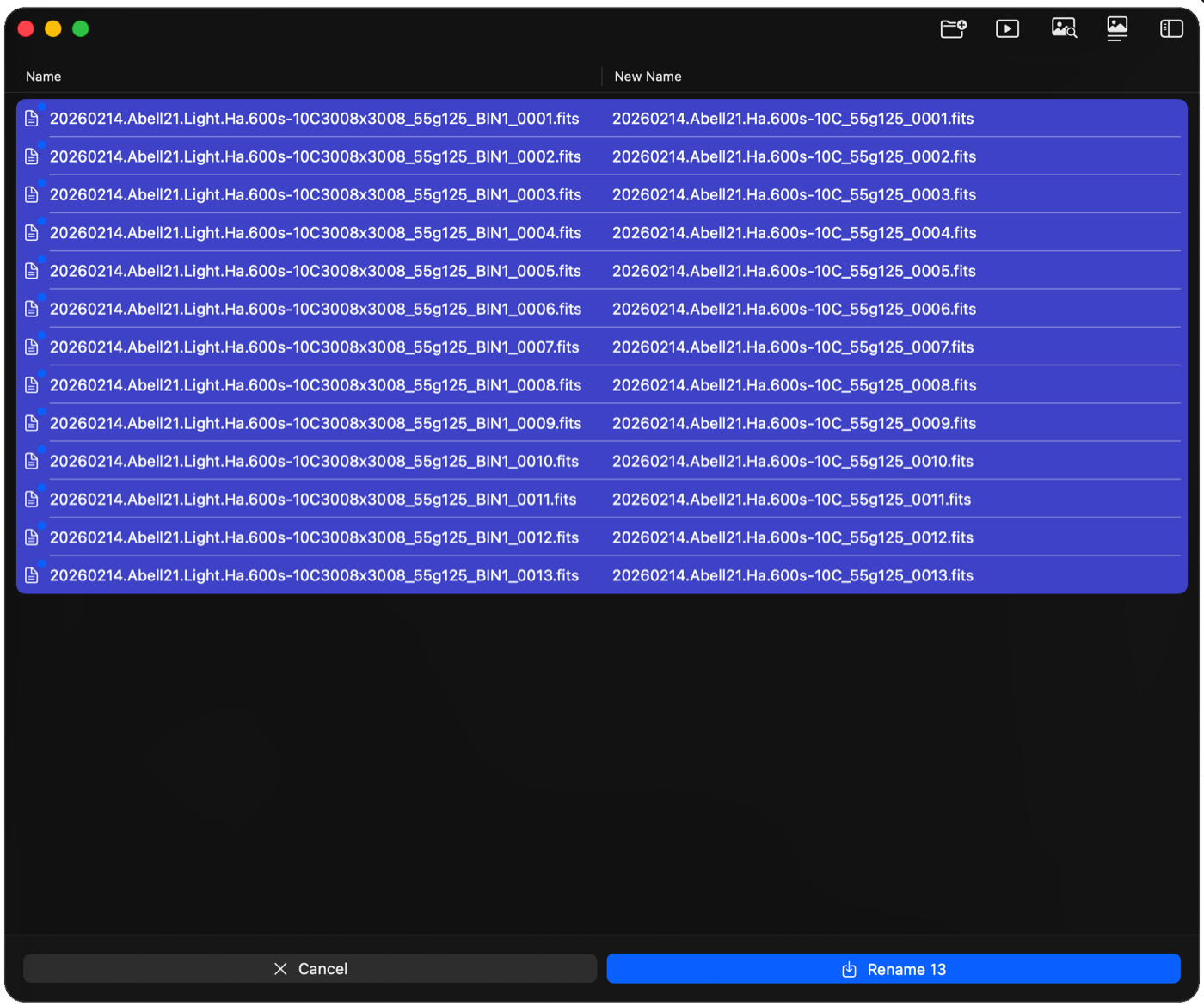
Rename Files turns Light_0001.fits into something like 20260114.M31.Light.Ha.300s-10C_4144x2822_0001.fits. You write a template once, and FITSit fills in each file’s own values.
Write header keywords between braces, and everything else you type is copied as it is:
{DATE-OBS:YYYYMMDD}.{OBJECT}.{FILTER}.{EXPTIME:.0}s_{Counter:04}- Any keyword in the header can be used, and alternatives (
{DATE-OBS|DATEOBS1}) fall back to the first keyword the file has. - Formatting controls how a value is written: numbers with a fixed number of decimals, whole numbers padded with zeros, and dates and times in any layout you like.
{Original Name}and{Counter}add the file’s current name or a running number, padded so that all the numbers are the same width.- Insert Keyword lists every keyword in the selected files, and clicking a row in the header list inserts it at the text cursor, so you don’t have to type them.
See it before you do it
The New Name column shows what each selected file will be called before anything happens. When a file can’t be named, the column says why, and that file is skipped, without stopping the rest: a missing keyword, a value that doesn’t suit its format, or a name another file would get too. FITSit never overwrites an existing file, and only the names change, never the contents.
Templates are remembered, and you can keep several in the Saved Templates list.
Read a FITS header, and fix it in one file or in a whole night’s worth
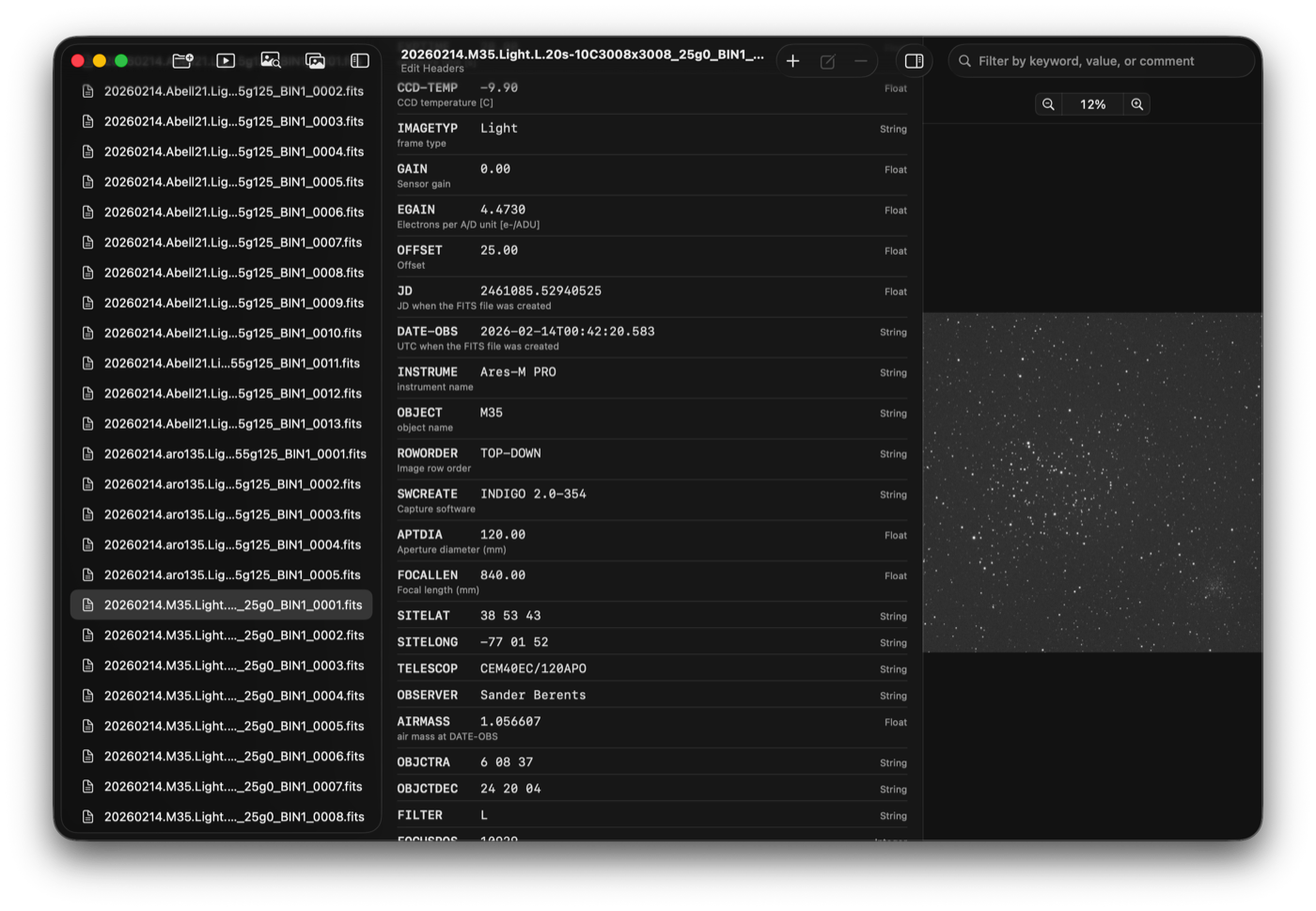
The folder’s files are listed on the left and the header of the selected file on the right, one row per card: the keyword, its value, the comment and the type of the value. Search finds a keyword, value or comment quickly.
- Add, edit and delete cards with the toolbar. Tab moves between keyword, value and comment, and Return finishes the row. Keywords are converted to capitals as you type.
- Reorder cards by dragging them. The few cards a FITS file requires at the top are kept in place.
- Undo and Redo step back and forward through every edit, deletion and move.
- Nothing is written until you click Save. Files with changes waiting show a marker in the list, and Cancel throws all of them away. If you change something and then change it back, the file isn’t marked as changed at all. If a file can’t be saved, FITSit says which one and why, and keeps your changes so you can try again.
Many files at once
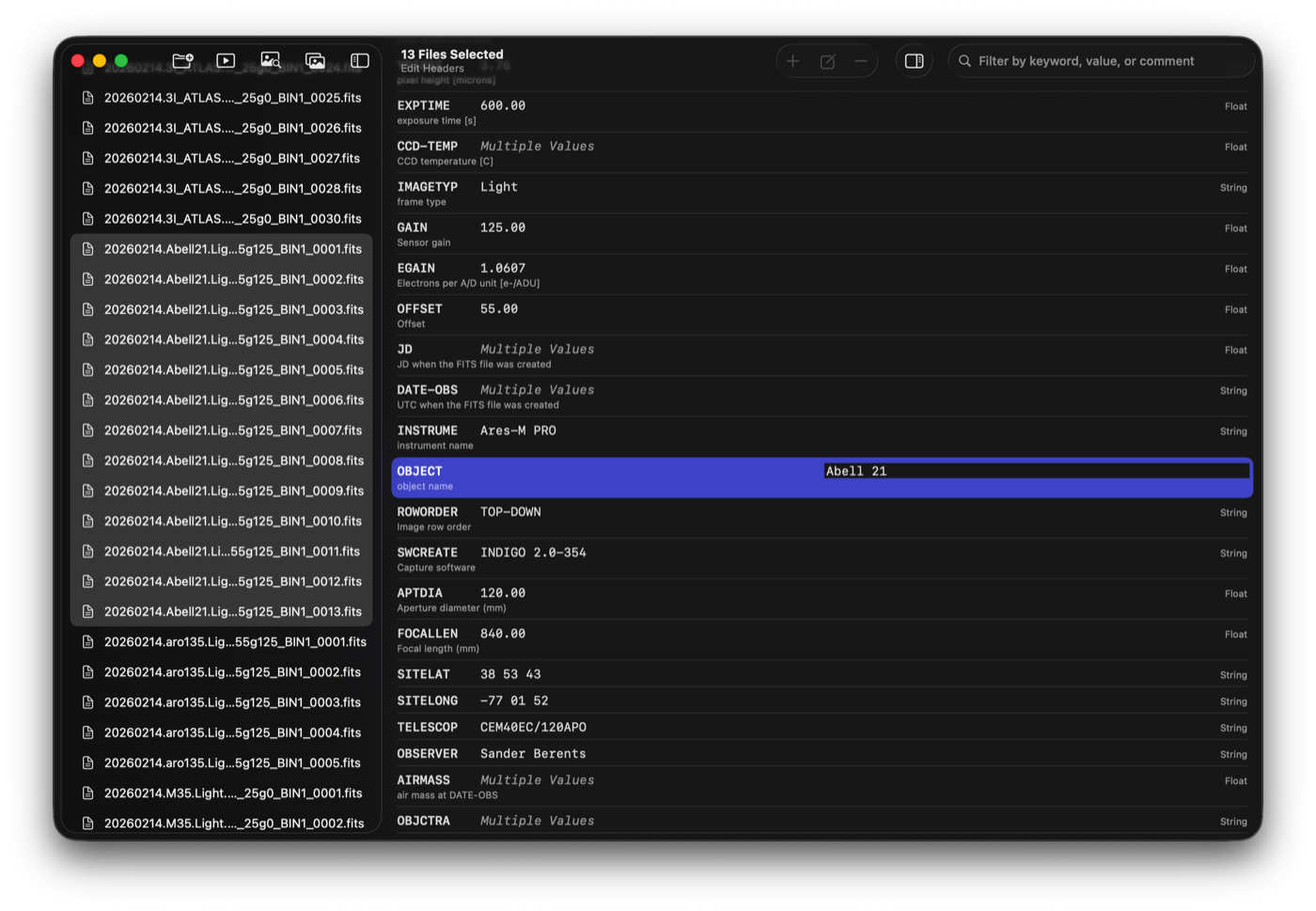
Select several files and the header area switches to a combined view with one row per keyword found in any of them. Where the files disagree, the row says so. Whatever you do to a row applies to every selected file: change a value, add a keyword to all of them, or remove it from all of them.
It is the quick way to correct a wrong OBJECT or FILTER name across a whole night’s frames.
Saving writes into the original files, so it is worth keeping a backup of precious folders before making large edits.
The same image viewer, wherever you need it
Blink Images shows its picture in the main part of the window. Inspect Images, Rename Files and Edit Headers can each show the selected file’s image in a side panel.
- Automatic screen stretch, so faint detail in a dark sky image is visible from the first look.
- Raw color frames from one-shot-color cameras are converted to color for display.
- Zoom from 1% to 1000% with the mouse wheel, a pinch on the trackpad, the zoom bar or the View menu, and the spot under the pointer stays where it is. Drag to move around the image.
- Zoom and position are kept when you select another file, which makes it easy to compare the same area in different images.
Files that aren’t valid FITS files, or are damaged, are marked with a warning triangle instead of failing quietly.
Built to be safe with your data
Explicit saves
Files change only when you click Save or Rename.
Nothing overwritten
Existing files are never overwritten when renaming.
Recoverable trash
Trashed files go to the Trash, where you can still get them back.
Windows of their own
Each window has its own folder and selection, so you can look at different folders side by side.
Choose a folder, and pick the window for the job
Blink Images opens when you start FITSit.
USD 9.99 · one-time purchase, with a 14-day free trial
FITSit works with .fits, .fit and .fts files. It includes a built-in Help book describing every window and shortcut.
Cataloging a whole imaging history? See Observatory, the astrophotography library that organizes it all by session, target and equipment.